Web ResourcesAccessibility
When updating or creating new pages in Cascade, it is essential to ensure your content is accessible to all users. Below are key practices to follow to make your web pages ADA-compliant and user-friendly.
Note: These guidelines are not exhaustive. For additional accessibility guidelines, see Northwestern's Digital Accessibility Policy and the university’s best practices for content accessibility and design. The university has also compiled a list of training opportunities for digital accessibility.
If you have further questions, please contact mccormick-webupdates@northwestern.edu.
Jump to a Section
Text
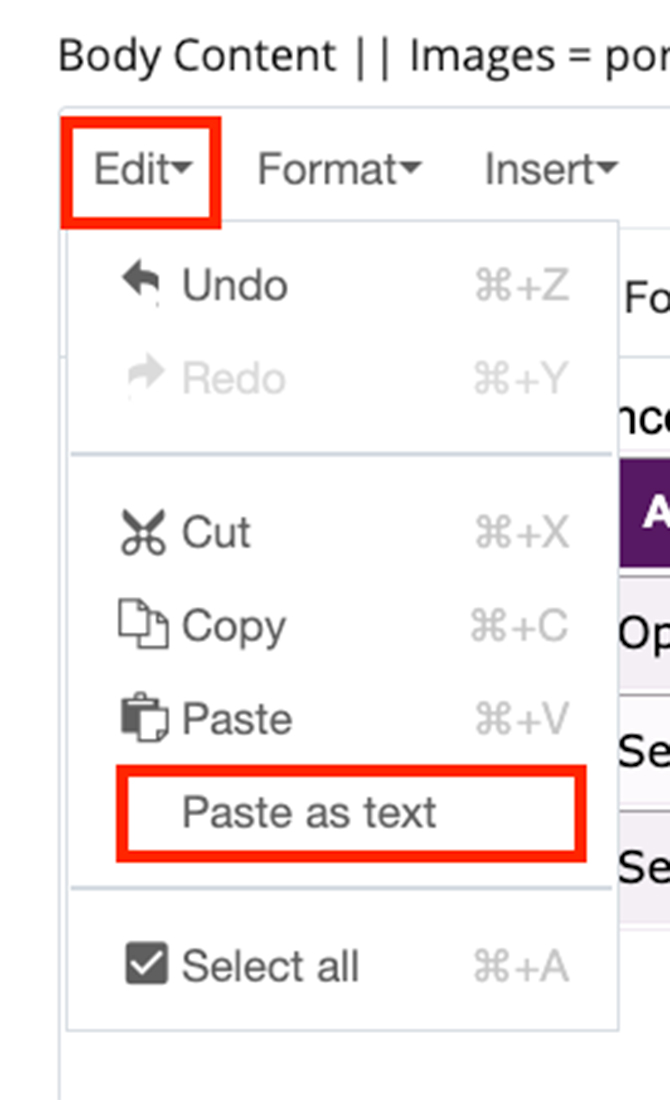
When copying text from another application (e.g., Word, PDF), remove formatting or code before pasting it into Cascade.
- Use the “Paste as Text” feature in Cascade.
- Alternatively, copy the text into TextEdit (Mac) or Notepad (Windows) to convert it to plain text.
- Once pasted, format your text using the WYSIWYG toolbar (e.g., paragraph or header formatting).
Resources
Headings and Subheadings
Users tend to scan web pages rather than read them from top to bottom. Additionally, screen readers rely on semantic HTML headers ( <h2>, <h3>, etc.) to navigate content. This means that concise copy and frequent (but judicious) use of subheadings are vital to making your pages useful to your readers.
Best Practices
- Use clear, concise headings and subheadings throughout your page.
- Do not use bold or italic text to mimic headers.
- The importance of a heading descends as its number ascends — information used as a Heading 2 should be more important than that of a Heading 3.
- With most Northwestern Engineering templates, you should not use any “Heading 1” formatting in your content, since Cascade automatically formats your site and page titles with that heading.
Creating Headings in Cascade
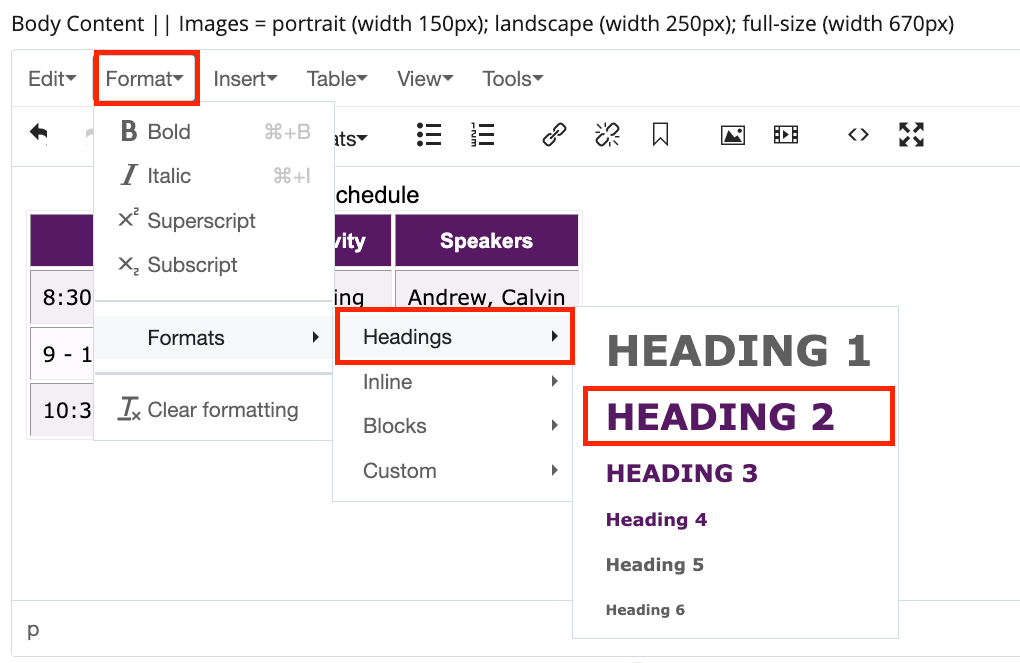
To create a heading or subheading in the Cascade content management system, select the text you wish to use as a header, then, in the Cascade Editor window, click the “Format” drop-down menu:
- For headers in the content areas of your webpages, use "Heading 2."
- For subheaders, use "Heading 3."
Resources
Links
Descriptive link texts help all your site visitors understand where the link will take them. This is especially important for people who use screen readers, which often navigate from link to link to skim web content.
Best Practices
- Avoid using vague phrases such as “Click here” or “Learn more” for your link texts.
- Avoid using the same text across different links on the page because it does not allow users to distinguish between different destinations.
Examples
Not accessible: Click here to learn more
Accessible: Learn more about Northwestern’s Digital Accessibility Policies and Standards
Not accessible: Download here
Accessible: Download Digital Accessibility Policy
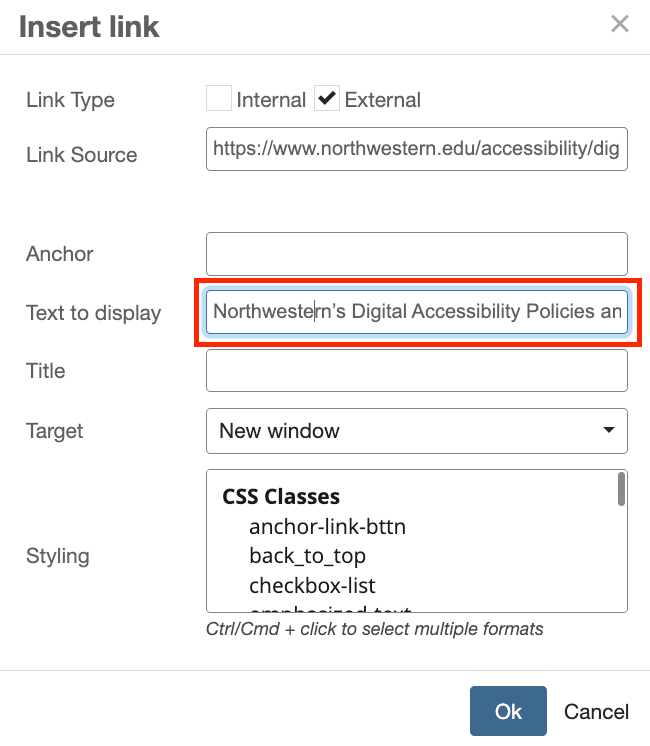
Adding Link Text
In the WYSIWYG, place the link text in the "Text to display" field.
Resources
- McCormick accessibility training video: Creating accessible links
- Global Marketing and Communications: Guide for creating links
- Northwestern Digital Accessibility resource: Best practices for links
Images
Avoid Text in Images
Avoid using images with text. Text within images cannot be read by screen readers or scaled for mobile viewing.
If it is necessary to use an infographic with text, please see the alt text guidance below.
Use Alt Texts on All Images
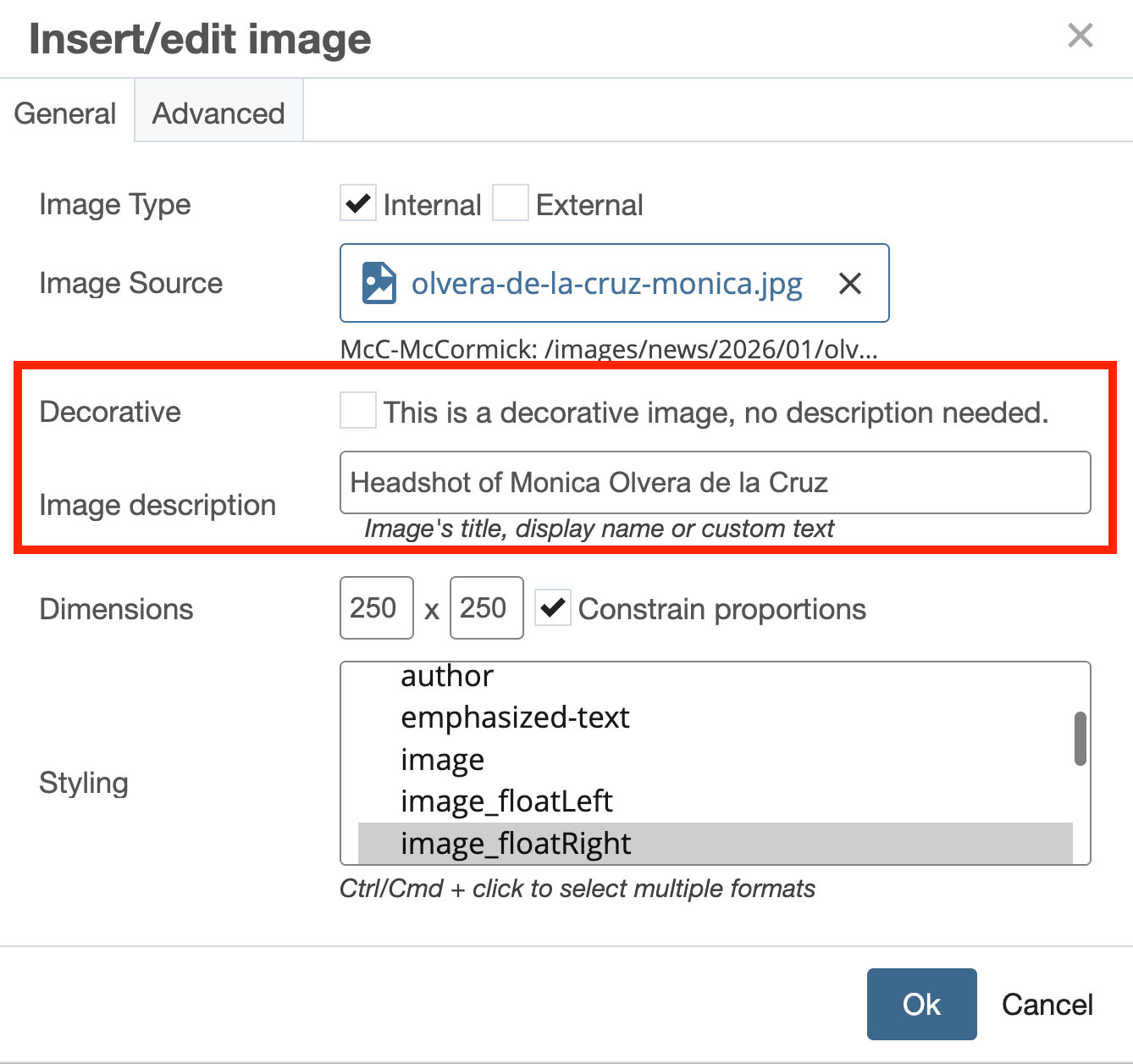
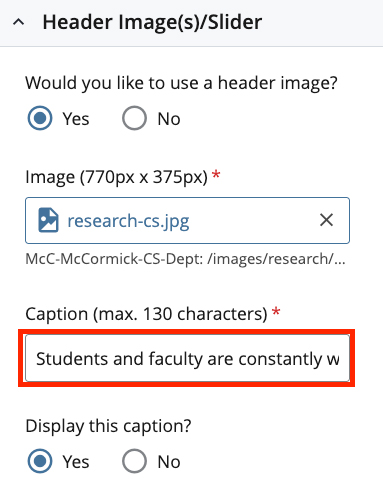
Cascade will ask you to fill in an alternative text when including a photograph or image. Alt texts provide descriptions for people who use assistive technology and are a requirement for ADA compliance.
Adding Alt Texts in Cascade
Alt texts should be added in the image description field, or in the caption field for header images.
Best Practices
- Limit alt text to 100 characters.
- Be descriptive (e.g., “Smith Research Laboratory” or “Students in a lecture hall”).
- A screen reader will announce when there is an image, so there is no need to say “image of...” However, a lead-in such as “painting of...” or “screenshot of...” can be helpful.
- For infographics, charts, or graphs, use the alt text field to provide a brief summary of the data (e.g., “Circular graphic showing the development of a fly, from embryo to adult”). If a longer description is needed, you can link to an accessible document that describes the image or infographic in more detail.
Resources
- Northwestern Digital Accessibility resource: Best practices for accessible images
- Siteimprove: Image Alt text best practices
Documents
Word documents and PDFs available through your site should be accessible. When possible, it is better to include information on a webpage rather than in a separate document. Please familiarize yourself with the Northwestern resource below as you create new electronic documents.
Resources
Tables
Tables are meant to organize data—not as a layout tool. Screen readers interpret tables by reading them from left to right, top to bottom. To ensure accessibility, each column and row needs a header, providing people using screen readers with the proper context to understand the data. Adding a caption to the table also allows people using screen readers to assess if they want to engage with the material.
Please refer to Northwestern’s best practices for tables, as well as instructions on how to create a table in Cascade.
If you have questions about creating tables, please contact mccormick-webupdates@northwestern.edu and explore the resources below.
Resources
- Global Marketing and Communications: Guide for creating tables in Cascade
- WebAIM: Creating accessible tables
Accessibility and Best Practices Training Video
A video tutorial covering Cascade editing for McCormick staffers is available:
Jump to a section:
- Introduction: What is web accessibility, and why is it important?
- Metadata: Page descriptions and keywords
- Text: Pasting as plain text and adding headers
- Links: Internal versus external links, link text, and link titles
- Jump menus: Anchor tags and "Return to Top" links
- Assets 1: Adding and organizing pages, images, and documents
- Assets 2: Replacing and naming images and documents
- Images: Alternative text, decorative images, and images displaying text
- Site tree: Site tree consistency, moving assets, unpublishing/removing assets, and resolving relationships